 Recordz
How to sync your Discogs wantlist with Recordz
Connect Discogs in the Recordz app to import your existing wants. With Sync to Discogs enabled, new wantlist adds and removals in Recordz also send a change to Discogs. Sync now imports missing wants from Discogs; it does not make the two lists identical.
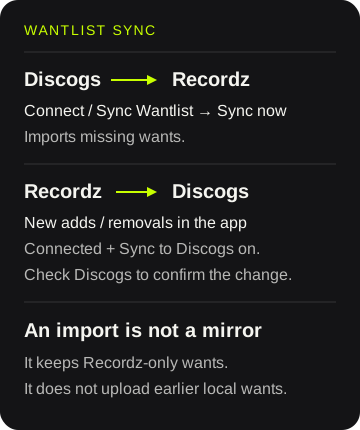
This guide walks through the controls and a worked example of saving one specific release. The steps were checked against Recordz's app source on October 6, 2026. They are source-verified, not a live-account walkthrough. The illustration explains the flow; it is not an app screenshot.
Before you connect: wantlist and collection are separate
Your wantlist holds releases you want. Your collection holds releases you own. Adding a release to Collection in Recordz does not automatically remove it from your wantlist.
Connecting Discogs automatically imports both lists and enables Sync to Discogs. Collection sync can also add Recordz-only collection releases to your Discogs collection. The connection is not limited to your wantlist, so review what you already own in Recordz before connecting or reconnecting.
| Action | Direction and scope |
|---|---|
| Connect or reconnect | Imports Discogs collection and wantlist; enables writes to Discogs. Collection reconciliation can send Recordz-only owned releases to Discogs. |
| Sync Wantlist → Sync now | Discogs → Recordz. Adds missing wants by release ID. Keeps Recordz-only wants; does not upload them. |
| New Want / Wanted change in Recordz | Recordz → Discogs for a Discogs release, while connected and Sync to Discogs is on. Check Discogs to confirm it arrived. |
| Sync Collection → Sync now | Imports missing owned releases, links existing copies, and sends Recordz-only owned releases when sync is enabled. This is a separate operation. |
Collection sync does not treat a deletion on Discogs as an instruction to delete the Recordz copy: a locally owned release can be added back to Discogs. It tracks one linked copy per release in Recordz and leaves additional Discogs copies alone. Use Discogs for detailed copy, folder and condition management.
1. Connect from the app
Saving and syncing happen in the Recordz app. The website lets you browse; it does not connect or edit your wantlist.
- Sign in to Recordz, then open Library.
- Tap the gear to open Settings, then Connected Services.
- Find Discogs and tap Connect.
- Complete the Discogs authorization in the browser that opens, then return to Recordz.
- Check the connected Discogs username and the Sync to Discogs toggle.
After a successful connection, Recordz starts a collection import followed by a wantlist import. If the collection import fails, the automatic wantlist import may not run. You can request it separately using the next step.
The control names here are the English labels. Recordz translates them when you use another app language.
2. Import missing Discogs wants
In Connected Services, find Sync Wantlist and tap Sync now. Then open Library → Wantlist to review the imported releases.
The import keeps each item's Discogs release ID. A different pressing of the same album is a different release, so matching titles alone do not establish that you have the same item.
An import adds missing Discogs wants without deleting Recordz-only wants. If you remove something directly on Discogs, importing again does not remove it from Recordz. Likewise, an earlier Recordz-only save is not uploaded just because you tap Sync now.
3. Worked example: choose the release you actually want
Suppose you find two versions of an album: Release A, a vinyl edition from one country, and Release B, a later edition on a different label. These are illustrative candidates, not records we added to an account.
Search in Recordz, open the candidate release, and compare its catalog number, label, year, country and format, where available. Choose Release A only if its details describe the edition you want. A cover image and album title can appear on several versions.
If you are starting from a physical copy or a seller's listing, compare those details too. The guide to reading a Discogs release page explains why an individual release differs from the album's master entry. First press versus reissue helps with the terminology.
4. Add it, then check both lists
With Discogs connected and Sync to Discogs on, tap Want on Release A's detail page. The button changes to Wanted. Check Library → Wantlist, then check the same release directly in your Discogs wantlist.
Recordz saves the local want and sends the Discogs change in the background. Wanted confirms the local state; it does not prove that Discogs received the write. If it is missing there, confirm the connected account, sync toggle and exact release before trying to resolve the difference.
This applies to records with a Discogs release identity. A shop-catalog record without one is not sent to the Discogs wantlist. An already wanted release is not a new add: tapping Sync now will not batch-upload it.
5. Remove a want deliberately
Open Release A again and tap Wanted to remove it from your Recordz wantlist. While connected with sync enabled, Recordz also sends a removal for that release to Discogs. Check both lists if you need to confirm the result.
If you bought the record, Collection is a separate button, which changes to In collection after adding. Adding it to Collection does not clear Wanted. Remove the want separately if you no longer want that edition.
If you removed it only on Discogs, also remove the Recordz want. Wantlist import does not reconcile deletions from Discogs.
6. Understand sync off, disconnect and reconnect
Turning Sync to Discogs off blocks new Recordz adds and removals from being sent to Discogs. You can still request an import while connected. This toggle does not disconnect the account.
To disconnect, open Settings → Connected Services, tap Disconnect beside Discogs and confirm Disconnect in the dialog. This stops the connection and retains your Recordz library. Changes you make while disconnected stay in Recordz; reconnecting is not a guaranteed replay of earlier wantlist changes.
Reconnecting uses Connect again, enables sync and automatically imports both lists. Review your collection first because Recordz-only owned releases can be sent to Discogs. Existing local-only wants are not automatically uploaded. A want you removed locally while disconnected or with sync off can return on import if it is still wanted on Discogs.
If the lists differ
Compare one exact release at a time. Check the connected username and Sync to Discogs, then distinguish the problem:
- Added on Discogs, absent in Recordz: use Sync Wantlist → Sync now and check Library again.
- Removed on Discogs, still in Recordz: remove the Recordz want too; another import will not clear it.
- Added in Recordz, absent on Discogs: the local heart is not a remote receipt. Check the account and toggle, then use Discogs directly if you need that want recorded there. Importing will not upload an earlier local want.
- Removed in Recordz, still on Discogs: check and remove the exact want directly on Discogs if needed. Importing while it remains there can bring it back.
The app source does not establish a guaranteed retry queue for missed wantlist changes. Avoid repeatedly disconnecting as a repair step: reconnecting also runs collection sync. For an unresolved error or an incomplete large import, contact Recordz support with the release ID and the action that failed. Never send account credentials.
Discogs wantlist sync FAQ
Does Sync now make my two wantlists identical?
No. Sync Wantlist imports missing Discogs release IDs into Recordz. It does not remove Recordz-only wants or upload an existing local wantlist. New Recordz adds and removals send separate changes to Discogs while connected with Sync to Discogs enabled.
Can I connect only my wantlist?
The connection flow automatically imports both collection and wantlist and enables Sync to Discogs. Collection sync can send Recordz-only owned releases to Discogs. Once connected, Sync Wantlist and Sync Collection have separate Sync now controls.
Does adding a record to Collection remove it from Wanted?
No. Collection and Wantlist are separate. Add the owned release to Collection, then remove the want separately if you no longer want it.
What happens if I reconnect after making local changes?
Reconnecting enables sync and imports both lists again. Existing local-only wants are not automatically uploaded. A locally removed want can return if it remains on Discogs, and Recordz-only collection releases can be sent to Discogs.
Is the Wanted button proof that Discogs saved my change?
No. It shows the Recordz wantlist state. Discogs writes happen in the background and can fail, so check the same release on Discogs to confirm an add or removal.
Published by Recordz. Last updated October 6, 2026. Setup, wantlist behavior and UI labels were checked against the app source. Existing fixture tests cover collection planning and the sync write gate; they do not verify a live OAuth connection, wantlist writes or reconnection. No live account was connected or changed to produce this guide.
Further reading: Recordz vs Discogs; discovering new vinyl; Recordz product facts.
Recordz is an independent application and is not affiliated with, endorsed by, or sponsored by Discogs or Zink Media, LLC. All trademarks are the property of their respective owners.